
Ecomzy troubleshooting becomes much easier when the problem is assigned to the correct layer before anyone starts clicking. Account access, storefront presentation, orders, Commission, Performance Tiers and paid services are connected, but they do not fail for the same reasons. This guide uses a state-based triage method: identify the object, capture the current state, determine the next expected state and investigate only the dependency that should cause that transition. The result is a cleaner support case and less risk of creating duplicate actions while trying random fixes.
1. Capture evidence before changing the state
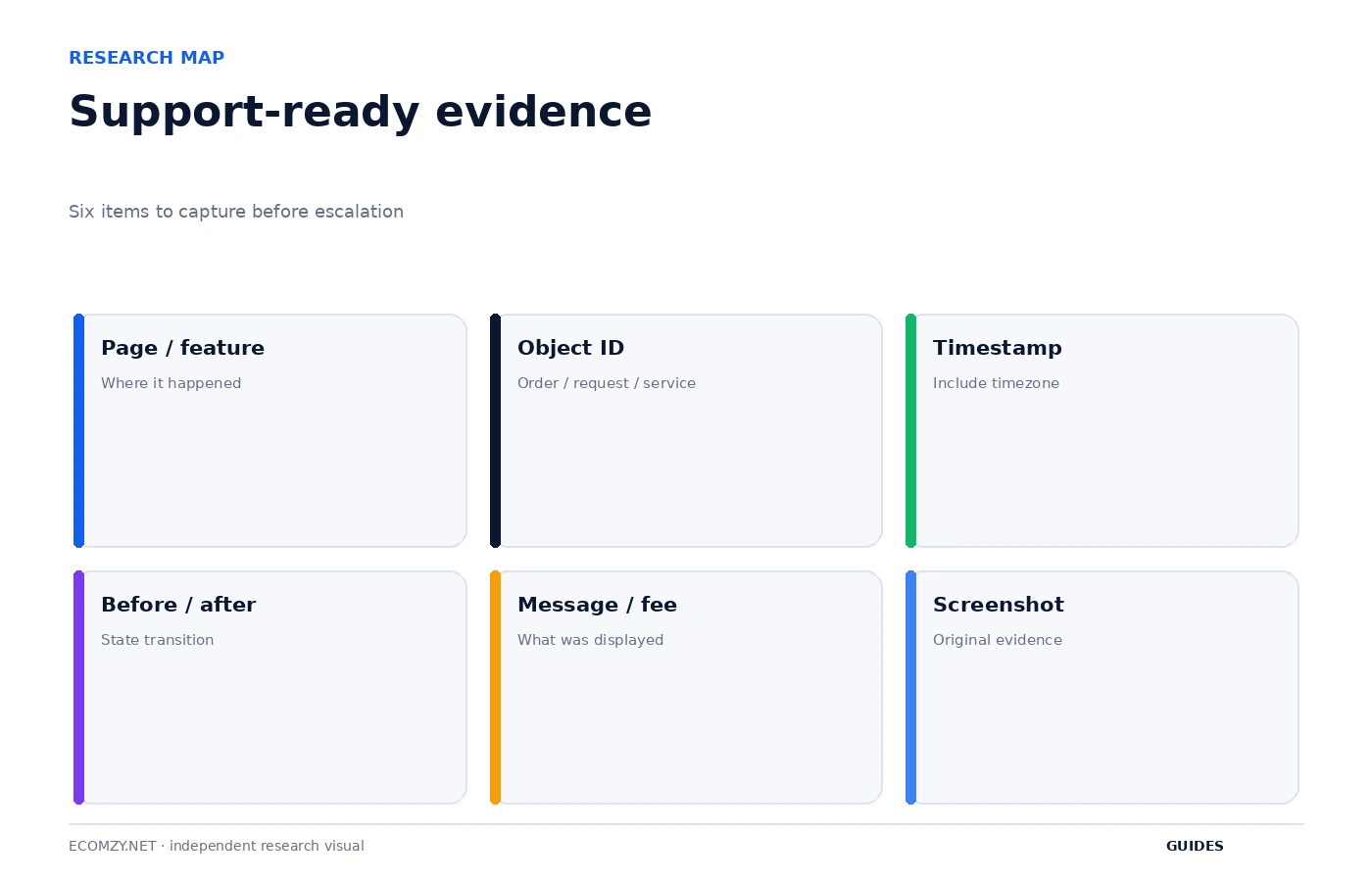
When something looks wrong, take one original screenshot and record the timestamp, page, object ID and visible message before trying a fix. If money or credits are involved, record the displayed amount. If the issue concerns an order or payout request, save the relevant ID. Troubleshooting without a baseline makes it difficult to know whether the attempted fix changed anything.
Avoid heavily editing the evidence. Annotations can be useful in a separate copy, but keep the original screenshot intact. Do not crop away the URL, order reference or state label if those details may matter. The objective is to preserve what the system actually showed.
2. Decide which layer owns the problem
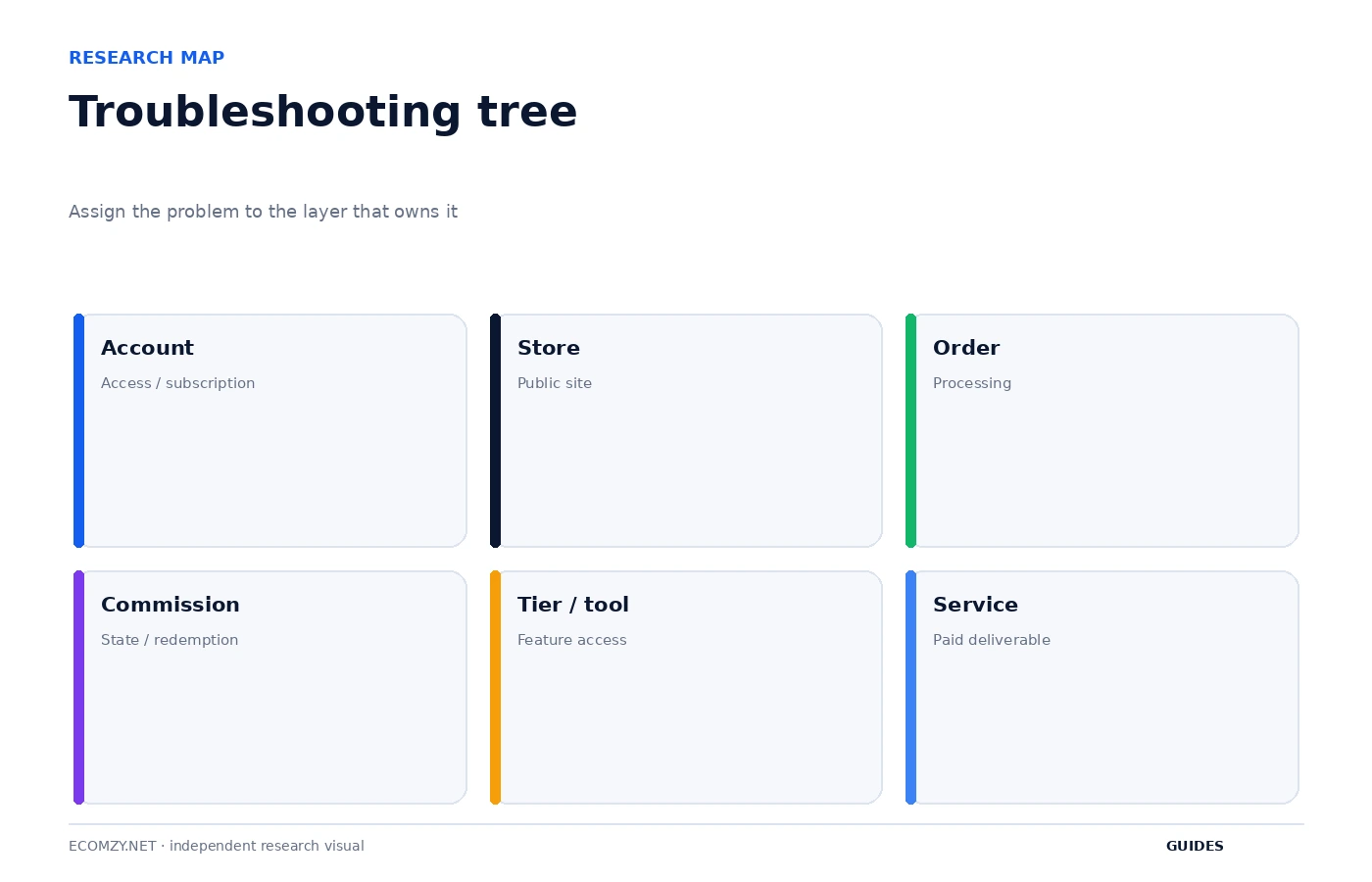
Use six broad layers: account, store, order, Commission, tier or tool, and paid service. A login problem belongs to the account layer. A broken navigation link belongs to the store. A Pending Commission item can belong upstream to the order. A missing marketing feature can belong to the Performance Tier or the underlying PRO subscription. A service that was purchased but not delivered belongs to the service record.
This classification prevents cross-layer fixes. Changing a theme will not solve an inactive subscription. Buying more credits will not fix a domain problem. Submitting a payout request will not advance Commission that is still Pending because an order remains unprocessed.
3. Account access or subscription problems
If the Dashboard is inaccessible, first confirm the login address, account email and subscription state. The current Terms say Dashboard access is tied to the subscription and that associated Performance Tier features can be suspended if the underlying PRO subscription is canceled, suspended or expired. A base subscription issue can therefore appear as several missing features at once.
Check the latest renewal receipt and any message from Ecomzy before changing account settings. If the account appears to have been charged but access is disabled, contact support with the charge date, account email and visible access message. Do not send full card details.
4. Store, domain or public-page problems
When the Dashboard works but the public store looks wrong, test the public URL in a private window and on another device. Determine whether the problem affects the whole domain, one page, navigation or only one browser session. A domain-resolution problem is different from a WordPress layout problem.
If the store was recently provisioned, remember that Ecomzy public pages use fast-launch marketing language while the Pricing FAQ currently says the store can take roughly 24 to 48 business hours after order completion. Use the current account and policy communication to decide whether the store is actually late before escalating.
5. Product or catalog problems
If an imported product is missing, check whether it was actually published, which category it belongs to and whether the public page exists. If the product page is present but unclear, treat that as a storefront QA issue rather than an import failure. Keep the catalog item or import reference if the interface provides one.
If a product appears to conflict with the store’s current theme or positioning, that is not necessarily a technical error. The Terms establish catalog access and import capability, not that every available product should remain live. Product-selection decisions should be handled through curation rather than support unless the platform action itself failed.
6. Orders that appear stuck
Start with the exact order state. If it is unprocessed, determine the required processing action. If processing was already confirmed, record the time and check the next expected fulfillment state. If the order is completed but the customer lacks digital access, separate the internal order state from the downstream delivery problem.
The current Terms include time-based rules around unprocessed orders, so do not leave an error undocumented. If processing fails, capture the message before retrying. Repeated attempts can make it harder to determine which action consumed credits or generated a fee.
7. Commission that is not moving
Use the documented state sequence. Pending Commission points first to the associated order. Incoming Commission is currently described as being under verification for up to 72 hours. Available Commission means the item has reached redemption eligibility, subject to the current payout conditions. Each state has a different troubleshooting question.
If an item remains Incoming beyond the expected window, provide the order ID, processing time and Commission state when contacting support. If Available Commission cannot be redeemed, check subscription status, whether associated orders are processed, the applicable minimum and any verification request before treating the issue as a payout failure.
8. Missing marketing tool or unexpected Performance Tier
If a tool disappears, confirm the underlying PRO subscription and current Performance Tier. The Terms say tier features depend on an active PRO subscription and that tool activation or order volume can trigger an automatic tier upgrade. A missing feature can therefore be an access dependency, while an unexpected higher tier can be a usage consequence.
Record the active tools before requesting a downgrade. The current Terms say downgrade requests can be reviewed for compatibility with usage and enabled features. If an unnecessary higher-tier tool is still active, clean up the account where appropriate before contacting support.
9. Paid service delivery or refund questions
For a paid Dashboard service, start with the purchase record: date, service, checkout total, fee line items, promised delivery and refund condition. Different services can have different fulfillment and refund rules. Do not rely on a general memory of a 30-day policy when the service-specific section may say work becomes non-refundable after delivery begins.
If delivery is late, ask for the service status and cite the purchase or order reference. If requesting a refund, quote the current service terms that apply and save the support confirmation. A precise service record is more useful than a screenshot of the card statement alone.
10. Build a support-ready message
A strong support message is short but specific. State the object, current state, expected next state, time the problem began and what you already tried once. Include one relevant screenshot and the ID. Avoid long emotional narratives before the diagnostic facts; support can act faster when the case has a reproducible sequence.
Example structure: “Order ABC123 was processed at 14:20 ET using the normal processing flow. The Dashboard still shows Pending at 18:30 ET. No second processing attempt was made. Screenshot attached.” The exact wording will vary, but the structure is valuable because it separates fact from interpretation.
11. Know when to stop troubleshooting
Stop self-service troubleshooting when another attempt could create a second charge, consume credits, alter the evidence or make an irreversible account change. Paid actions, repeated processing, subscription changes and payout requests deserve more caution than a simple page refresh. Document first and escalate when the next action is uncertain.
Also stop when the current Terms and Dashboard disagree in a way that materially affects money or access. Public documentation can change, and account-specific configuration can differ. Support should resolve the account state; a third-party guide should not invent a hidden explanation.
12. Close the incident
After support resolves the problem, record the resolution and remove the item from the active exception queue. If the issue revealed a recurring operating weakness, update the relevant checklist. For example, if a tier changed because a tool remained enabled, add a tool-utilization review. If an order was missed, improve the daily queue.
Troubleshooting becomes useful when the same problem is less likely to recur. The final step is therefore not merely “it works now.” It is identifying whether the routine, documentation or decision rule should change.
Frequently asked questions
What should I do before contacting Ecomzy support?
Capture the exact state, ID, timestamp, visible message and one original screenshot.
Why should I avoid repeated clicks?
Repeated paid or state-changing actions can create duplicate attempts and make the original problem harder to reconstruct.
What does Pending Commission usually tell me to check first?
The associated order and whether it has been processed.
What if the Dashboard and an old guide disagree?
Use the current Dashboard and current Ecomzy Terms for account decisions, and escalate material discrepancies to support.
Where to go next
- Ecomzy Order Management Guide
- How to Manage Your Ecomzy Store Day to Day
- How Ecomzy Commission and Redemption Work
Official sources reviewed
Keep an incident log
For material incidents, record date, layer, object ID, symptom, action taken, support case and resolution. Over time, the log reveals repeated failure patterns and tells you which checklists need improvement. It also stops the same issue from being investigated from zero every time.
Review this item on a fixed cadence and record only changes that affect access, money, customer experience or the next operational state. The purpose of the guide is to create a repeatable decision process, not to add more routine work than the store actually needs.
Separate evidence from theory
Write what the system shows before writing why you think it happened. “Incoming since 10:15” is evidence. “The payout system is broken” is a theory. Support and future troubleshooting are more effective when the evidence remains distinct from the user’s interpretation.
Review this item on a fixed cadence and record only changes that affect access, money, customer experience or the next operational state. The purpose of the guide is to create a repeatable decision process, not to add more routine work than the store actually needs.
Operating review note
At the end of each review cycle, compare the current account state with the dated baseline you created earlier. Identify what changed, which change was intentional and which object now requires the next action. If a paid or irreversible action is involved, verify the current Dashboard disclosure and current Terms before proceeding.
Keep the record concise. A useful operating note contains a date, object, state, expected next event and action owner. This structure remains useful even if Ecomzy changes menu labels or redesigns the interface because it describes the workflow rather than a particular screenshot.
Operating review note
At the end of each review cycle, compare the current account state with the dated baseline you created earlier. Identify what changed, which change was intentional and which object now requires the next action. If a paid or irreversible action is involved, verify the current Dashboard disclosure and current Terms before proceeding.
Keep the record concise. A useful operating note contains a date, object, state, expected next event and action owner. This structure remains useful even if Ecomzy changes menu labels or redesigns the interface because it describes the workflow rather than a particular screenshot.
Operating review note
At the end of each review cycle, compare the current account state with the dated baseline you created earlier. Identify what changed, which change was intentional and which object now requires the next action. If a paid or irreversible action is involved, verify the current Dashboard disclosure and current Terms before proceeding.
Keep the record concise. A useful operating note contains a date, object, state, expected next event and action owner. This structure remains useful even if Ecomzy changes menu labels or redesigns the interface because it describes the workflow rather than a particular screenshot.
Operating review note
At the end of each review cycle, compare the current account state with the dated baseline you created earlier. Identify what changed, which change was intentional and which object now requires the next action. If a paid or irreversible action is involved, verify the current Dashboard disclosure and current Terms before proceeding.
Keep the record concise. A useful operating note contains a date, object, state, expected next event and action owner. This structure remains useful even if Ecomzy changes menu labels or redesigns the interface because it describes the workflow rather than a particular screenshot.
Operating review note
At the end of each review cycle, compare the current account state with the dated baseline you created earlier. Identify what changed, which change was intentional and which object now requires the next action. If a paid or irreversible action is involved, verify the current Dashboard disclosure and current Terms before proceeding.
Keep the record concise. A useful operating note contains a date, object, state, expected next event and action owner. This structure remains useful even if Ecomzy changes menu labels or redesigns the interface because it describes the workflow rather than a particular screenshot.
Operating review note
At the end of each review cycle, compare the current account state with the dated baseline you created earlier. Identify what changed, which change was intentional and which object now requires the next action. If a paid or irreversible action is involved, verify the current Dashboard disclosure and current Terms before proceeding.
Keep the record concise. A useful operating note contains a date, object, state, expected next event and action owner. This structure remains useful even if Ecomzy changes menu labels or redesigns the interface because it describes the workflow rather than a particular screenshot.
Operating review note
At the end of each review cycle, compare the current account state with the dated baseline you created earlier. Identify what changed, which change was intentional and which object now requires the next action. If a paid or irreversible action is involved, verify the current Dashboard disclosure and current Terms before proceeding.
Keep the record concise. A useful operating note contains a date, object, state, expected next event and action owner. This structure remains useful even if Ecomzy changes menu labels or redesigns the interface because it describes the workflow rather than a particular screenshot.
Operating review note
At the end of each review cycle, compare the current account state with the dated baseline you created earlier. Identify what changed, which change was intentional and which object now requires the next action. If a paid or irreversible action is involved, verify the current Dashboard disclosure and current Terms before proceeding.
Keep the record concise. A useful operating note contains a date, object, state, expected next event and action owner. This structure remains useful even if Ecomzy changes menu labels or redesigns the interface because it describes the workflow rather than a particular screenshot.
Operating review note
At the end of each review cycle, compare the current account state with the dated baseline you created earlier. Identify what changed, which change was intentional and which object now requires the next action. If a paid or irreversible action is involved, verify the current Dashboard disclosure and current Terms before proceeding.
Keep the record concise. A useful operating note contains a date, object, state, expected next event and action owner. This structure remains useful even if Ecomzy changes menu labels or redesigns the interface because it describes the workflow rather than a particular screenshot.
Join the discussion
Share a question, correction or useful experience related to this article. First-time comments may be held for moderation.