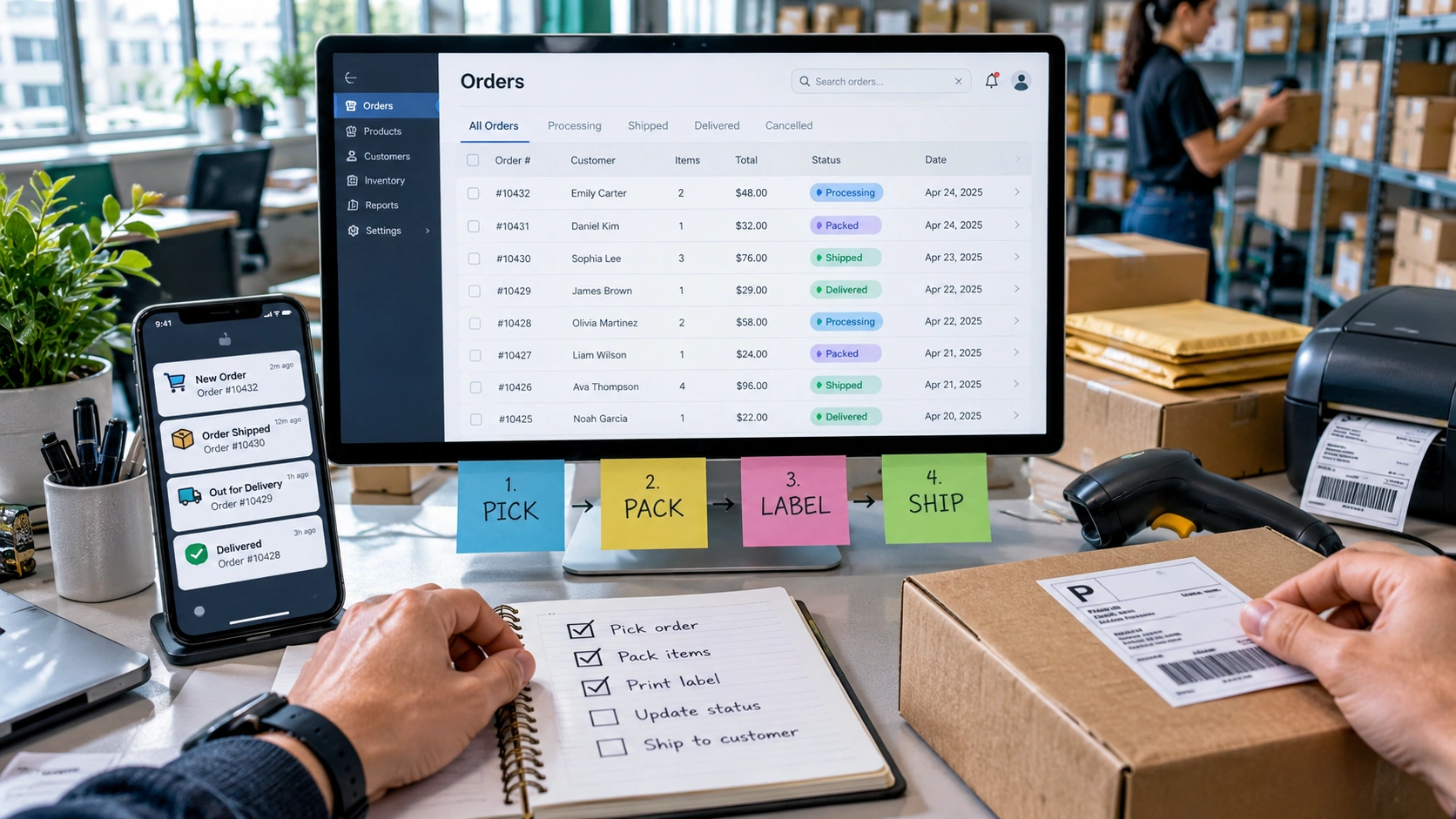
Order management should make every paid or state-changing action traceable. Ecomzy’s current Terms connect processing with digital fulfillment, fees, Commission states and an optional Order Processing Service. They also describe different payment or storefront models, so the safest routine begins by identifying the actual account flow before taking action. The objective is not to memorize every possible fee; it is to know which order needs attention, which processing method is being used, what changed afterward and what evidence to keep if the state does not advance.
1. Start the day with an unprocessed-order view
Separate orders that need action from completed history. A new order is useful only if the owner can identify the next required step. If the Dashboard allows filtering, use the relevant status. If not, keep a small external list of order IDs awaiting action. The list should be short-lived and contain no unnecessary customer data.
The current Terms tie Pending Commission to unprocessed orders. That means an order left waiting can also affect a later Commission state. Order management is therefore upstream of several other account questions. Handle the upstream state before troubleshooting the downstream one.
2. Identify the payment or storefront model
Ecomzy’s Terms currently describe more than one operating model, including Ecomzy Payments, a Customer-Managed Payments Model and a Partner Storefront context connected with Ecomzy Mall. Do not assume a generic tutorial represents your account. Look at where checkout actually occurs and what your Dashboard asks you to do after the order appears.
This matters because the meaning of a payment, fee or Commission item can change with the model. A Partner Commission is not the same thing as customer money handled by the store owner. A customer-managed transaction has different responsibilities. Your daily routine should be based on the live account configuration, not on a screenshot from another user’s workflow.
3. Review the action and displayed cost before confirming
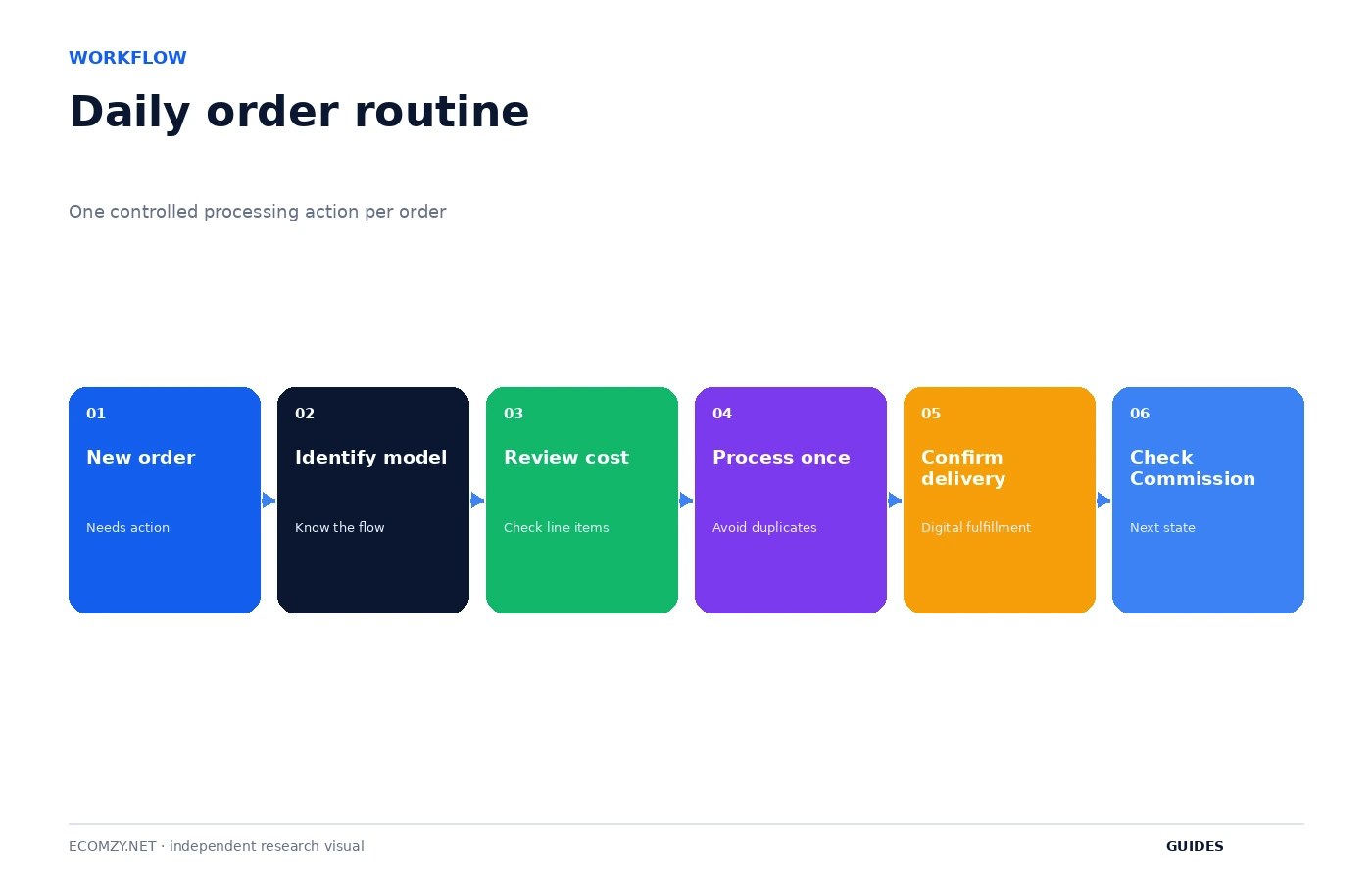
The Terms list several fee families around platform services and processing. Instead of memorizing percentages, read the line items attached to the specific action you are about to take. Is the account processing a product, buying a Dashboard service or using Order Processing Credits? Those events can have different rules even though the word processing appears in more than one label.
Record the order ID, displayed amount or credits, the method and the current state before confirming. This takes seconds and gives you a clean reference if the result is unexpected. A good operating rule is one deliberate processing action per order unless the Dashboard explicitly instructs you to retry.
4. Understand the optional Order Processing Service
The current Terms describe an optional Order Processing Service designed to accelerate internal fulfillment. It is initiated through Order Processing Credits, which the Terms define as prepaid non-cash service units used for that service. They are not withdrawable, transferable or a wallet balance. Treat a credit balance as purchased service capacity.
If you choose the optional service, record that choice with the order. This separates an ordinary processing action from a credit-based one when you later reconcile costs. If you do not know which method a past order used, a fee difference can look mysterious even when it was triggered by a different workflow.
5. Watch the processing clock
The current Terms include a Late Processing Charge when processing is not confirmed within three days and describe additional operational steps that can apply when an order remains unprocessed within seven days. These rules make delay an operational variable. An order queue should therefore show age, not just status.
You do not need an elaborate system. Add the order date or timestamp to the action list. Review the oldest unprocessed orders first. If an order cannot be processed because of an error, record the error immediately so the support case shows that the user attempted to act before the deadline rather than simply ignoring the order.
6. Confirm digital fulfillment
Ecomzy’s current Fulfillment Policy says the platform offers digital products and services. Digital fulfillment can still fail: access can be missing, a download can be unavailable, a license can fail or an enrollment can be delayed. A completed internal processing state should therefore be followed by a check that the expected customer-access mechanism makes sense for the product.
When a customer reports a delivery problem, identify the product, order, expected access method and exact message received. Avoid describing every digital-access issue as an order-processing failure. The order can be processed while the downstream access experience still needs support.
7. Check the Commission transition after processing
Under the current Partner Commission rules, processing is connected to a move from Pending toward Incoming. Incoming is currently described as a verification state lasting up to 72 hours. If the order was processed successfully, note the processing time and then use that timestamp when reviewing Commission. This creates a meaningful clock for the next expected state.
Do not submit a payout-related support question while the underlying order is still visibly unprocessed unless the issue is specifically about that order. State-based troubleshooting is faster: Pending points to processing, Incoming points to verification, and Available points to redemption eligibility.
8. Diagnose a stuck order before retrying
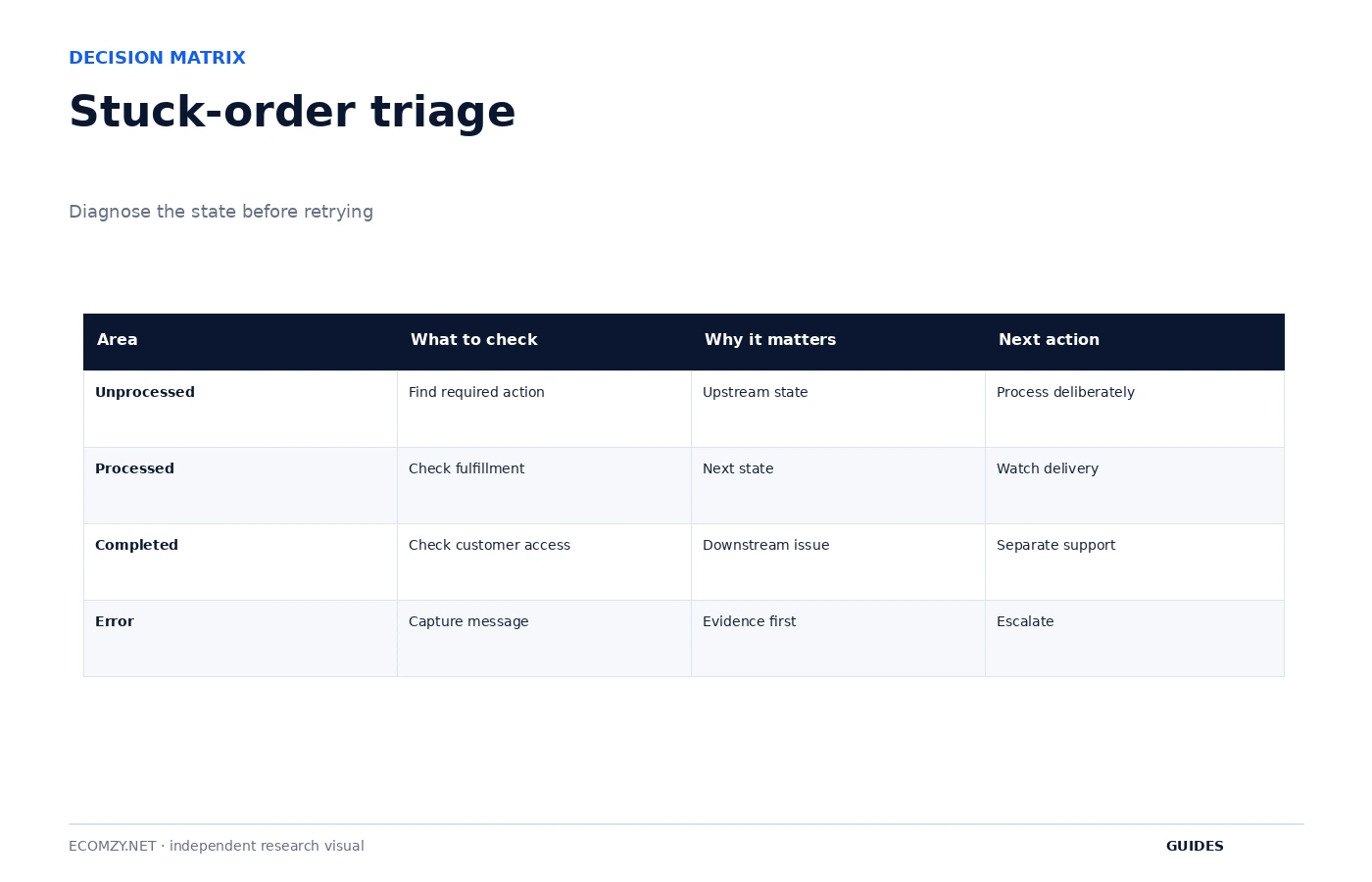
When an order looks stuck, first decide whether it is unprocessed, processed but awaiting fulfillment, completed but associated with an unresolved customer-access issue, or in an explicit error state. Those categories lead to different next actions. Repeating the same click without knowing the category can create duplicate attempts and muddy the record.
Capture the screen, timestamp and visible status. If the account shows a fee or credit consumption, include that too. Then contact support with the order ID and the state transition you expected. “Order 123 was processed at 14:20 and still shows X at 17:30” is far more actionable than “my order is broken.”
9. Build an escalation message from evidence
A useful support message contains the order ID, time the order was created, time processing was attempted, processing method, displayed charge or credits, state before the action, state after the action and the exact error if one appeared. Add one original screenshot. Do not crop away the order reference or timestamp when those details are relevant.
If a customer is also affected, state the expected digital delivery and what the customer reports receiving. This lets support distinguish account processing from customer access. Keep the support case reference with the order until the issue is closed.
10. Reconcile unusual orders at the end of the week
Once a week, review orders that required support, late handling or optional processing services. Compare what was charged with the action recorded. Check whether the related Commission state eventually advanced. This small review is where patterns emerge: a recurring access problem, repeated delay, misunderstanding of a processing method or a cost category that needs a separate budget line.
The goal is not to audit every normal order. Normal orders should disappear from the action queue. The weekly review exists for exceptions so that one unresolved state does not quietly become a permanent account discrepancy.
Frequently asked questions
What should I record before processing an order?
Order ID, current state, processing method and the displayed amount or credits.
Are Order Processing Credits money?
No. The current Terms describe them as prepaid non-cash service units for the optional Order Processing Service.
Why does order age matter?
The current Terms include time-based late-processing rules, so an unprocessed order should be prioritized by age.
What should I do if the status does not change?
Capture the state and timestamp, avoid repeated clicks, and escalate with the order ID and expected next state.
Where to go next
- Ecomzy Troubleshooting Guide
- How Ecomzy Commission and Redemption Work
- How Ecomzy Orders and Order Processing Work
Official sources reviewed
Create an order exception code
Use simple internal labels such as WAITING-ACTION, PROCESSING-ERROR, DELIVERY-ACCESS and SUPPORT-OPEN. These labels are for your own operating notes, not a claim about Ecomzy’s official statuses. They help you group exceptions without changing the platform record and make the weekly review much faster.
Review this item on a fixed cadence and record only changes that affect access, money, customer experience or the next operational state. The purpose of the guide is to create a repeatable decision process, not to add more routine work than the store actually needs.
Separate customer communication from platform diagnosis
A customer may only need a clear update while the platform issue is being investigated. Keep the customer-facing message factual and avoid promising a timeline the platform has not confirmed. Internally, maintain the technical timeline with states, timestamps and support references.
Review this item on a fixed cadence and record only changes that affect access, money, customer experience or the next operational state. The purpose of the guide is to create a repeatable decision process, not to add more routine work than the store actually needs.
Operating review note
At the end of each review cycle, compare the current account state with the dated baseline you created earlier. Identify what changed, which change was intentional and which object now requires the next action. If a paid or irreversible action is involved, verify the current Dashboard disclosure and current Terms before proceeding.
Keep the record concise. A useful operating note contains a date, object, state, expected next event and action owner. This structure remains useful even if Ecomzy changes menu labels or redesigns the interface because it describes the workflow rather than a particular screenshot.
Operating review note
At the end of each review cycle, compare the current account state with the dated baseline you created earlier. Identify what changed, which change was intentional and which object now requires the next action. If a paid or irreversible action is involved, verify the current Dashboard disclosure and current Terms before proceeding.
Keep the record concise. A useful operating note contains a date, object, state, expected next event and action owner. This structure remains useful even if Ecomzy changes menu labels or redesigns the interface because it describes the workflow rather than a particular screenshot.
Operating review note
At the end of each review cycle, compare the current account state with the dated baseline you created earlier. Identify what changed, which change was intentional and which object now requires the next action. If a paid or irreversible action is involved, verify the current Dashboard disclosure and current Terms before proceeding.
Keep the record concise. A useful operating note contains a date, object, state, expected next event and action owner. This structure remains useful even if Ecomzy changes menu labels or redesigns the interface because it describes the workflow rather than a particular screenshot.
Operating review note
At the end of each review cycle, compare the current account state with the dated baseline you created earlier. Identify what changed, which change was intentional and which object now requires the next action. If a paid or irreversible action is involved, verify the current Dashboard disclosure and current Terms before proceeding.
Keep the record concise. A useful operating note contains a date, object, state, expected next event and action owner. This structure remains useful even if Ecomzy changes menu labels or redesigns the interface because it describes the workflow rather than a particular screenshot.
Operating review note
At the end of each review cycle, compare the current account state with the dated baseline you created earlier. Identify what changed, which change was intentional and which object now requires the next action. If a paid or irreversible action is involved, verify the current Dashboard disclosure and current Terms before proceeding.
Keep the record concise. A useful operating note contains a date, object, state, expected next event and action owner. This structure remains useful even if Ecomzy changes menu labels or redesigns the interface because it describes the workflow rather than a particular screenshot.
Operating review note
At the end of each review cycle, compare the current account state with the dated baseline you created earlier. Identify what changed, which change was intentional and which object now requires the next action. If a paid or irreversible action is involved, verify the current Dashboard disclosure and current Terms before proceeding.
Keep the record concise. A useful operating note contains a date, object, state, expected next event and action owner. This structure remains useful even if Ecomzy changes menu labels or redesigns the interface because it describes the workflow rather than a particular screenshot.
Operating review note
At the end of each review cycle, compare the current account state with the dated baseline you created earlier. Identify what changed, which change was intentional and which object now requires the next action. If a paid or irreversible action is involved, verify the current Dashboard disclosure and current Terms before proceeding.
Keep the record concise. A useful operating note contains a date, object, state, expected next event and action owner. This structure remains useful even if Ecomzy changes menu labels or redesigns the interface because it describes the workflow rather than a particular screenshot.
Operating review note
At the end of each review cycle, compare the current account state with the dated baseline you created earlier. Identify what changed, which change was intentional and which object now requires the next action. If a paid or irreversible action is involved, verify the current Dashboard disclosure and current Terms before proceeding.
Keep the record concise. A useful operating note contains a date, object, state, expected next event and action owner. This structure remains useful even if Ecomzy changes menu labels or redesigns the interface because it describes the workflow rather than a particular screenshot.
Operating review note
At the end of each review cycle, compare the current account state with the dated baseline you created earlier. Identify what changed, which change was intentional and which object now requires the next action. If a paid or irreversible action is involved, verify the current Dashboard disclosure and current Terms before proceeding.
Keep the record concise. A useful operating note contains a date, object, state, expected next event and action owner. This structure remains useful even if Ecomzy changes menu labels or redesigns the interface because it describes the workflow rather than a particular screenshot.
Operating review note
At the end of each review cycle, compare the current account state with the dated baseline you created earlier. Identify what changed, which change was intentional and which object now requires the next action. If a paid or irreversible action is involved, verify the current Dashboard disclosure and current Terms before proceeding.
Keep the record concise. A useful operating note contains a date, object, state, expected next event and action owner. This structure remains useful even if Ecomzy changes menu labels or redesigns the interface because it describes the workflow rather than a particular screenshot.
Operating review note
At the end of each review cycle, compare the current account state with the dated baseline you created earlier. Identify what changed, which change was intentional and which object now requires the next action. If a paid or irreversible action is involved, verify the current Dashboard disclosure and current Terms before proceeding.
Keep the record concise. A useful operating note contains a date, object, state, expected next event and action owner. This structure remains useful even if Ecomzy changes menu labels or redesigns the interface because it describes the workflow rather than a particular screenshot.
Join the discussion
Share a question, correction or useful experience related to this article. First-time comments may be held for moderation.